Manually digging through a Microsoft Teams recording to write up a Record of Advice, then re-typing the same summary into your CRM, costs an adviser 20-30 minutes per meeting that never shows up on a timesheet. Connect Alcova to Microsoft Teams once, and every scheduled Teams meeting gets transcribed, summarised and pushed into your CRM without anyone touching a keyboard after the call ends.
- Connecting Alcova to Microsoft Teams takes under 10 minutes with a Microsoft 365 work account and Alcova admin access.
- Auto-join only fires on meetings booked through the synced calendar — ad-hoc Teams calls need a manual invite.
- Notes, transcripts and Record of Advice drafts route to your CRM automatically once CRM Sync is switched on.
- Teams meeting policies, not Alcova, are the most common reason a notetaker bot fails to join in 2026.
Why this matters
Every adviser using Teams for client meetings in 2026 is sitting on a compliance record that currently lives nowhere useful — buried in a video file with no searchable transcript and no link to the client's CRM entry. Connecting Alcova to Microsoft Teams turns that recording into a file note, a summary and a CRM update the moment the meeting ends, which matters as much for audit readiness as it does for admin time.
Firms running Teams as their default meeting tool don't need a separate transcription app and a separate CRM data-entry step. One connection replaces both, and the compliance record gets created whether or not anyone remembers to do it manually.
Before you start
- A Microsoft 365 work account with Teams and calendar access — personal Microsoft accounts won't authorise the connection.
- Alcova workspace access with integration permissions — a standard user account without admin rights can usually connect their own calendar, but firm-wide rollout needs an Alcova admin.
- The gotcha: auto-join only triggers on meetings scheduled through the calendar Alcova is watching. A Teams call started ad-hoc from a chat thread, with no calendar invite, won't get picked up — invite the notetaker manually for those or expect a gap in your records.
Connect your Microsoft 365 account
- In Alcova, open Settings, then Integrations.
- Find the Microsoft Teams card and click Connect.
- Sign in with your Microsoft 365 work account and grant the calendar and meeting permissions Microsoft prompts for.
- Confirm the connection — the Teams card should now show a Connected status with your account email underneath it.
Expected result: your upcoming Teams meetings appear in Alcova's calendar view within a minute or two of connecting.
Configure meeting capture settings
- In the Teams integration settings, switch Auto-join meetings on.
- Choose which calendars to monitor — all meetings, or only meetings tagged as client-facing if you run internal standups through the same calendar.
- Set the join buffer so the notetaker joins at the meeting start time rather than late.
Expected result: book a test Teams meeting for a few minutes out and watch the Alcova notetaker join automatically at the scheduled time.
Route notes to your CRM
- Go to CRM Sync in Settings and select your CRM destination — Xplan, Salesforce Financial Services Cloud, Wealthbox and several others are supported; check CRM sync tools for financial advisers if you're still choosing between them.
- Map meeting types to the right output — a client review might map to a Record of Advice draft, an internal call to a plain file note.
- Turn on Auto-push after meeting ends.
Expected result: within a few minutes of the meeting finishing, the transcript, summary and CRM entry all appear against the client's record without anyone opening the CRM manually.
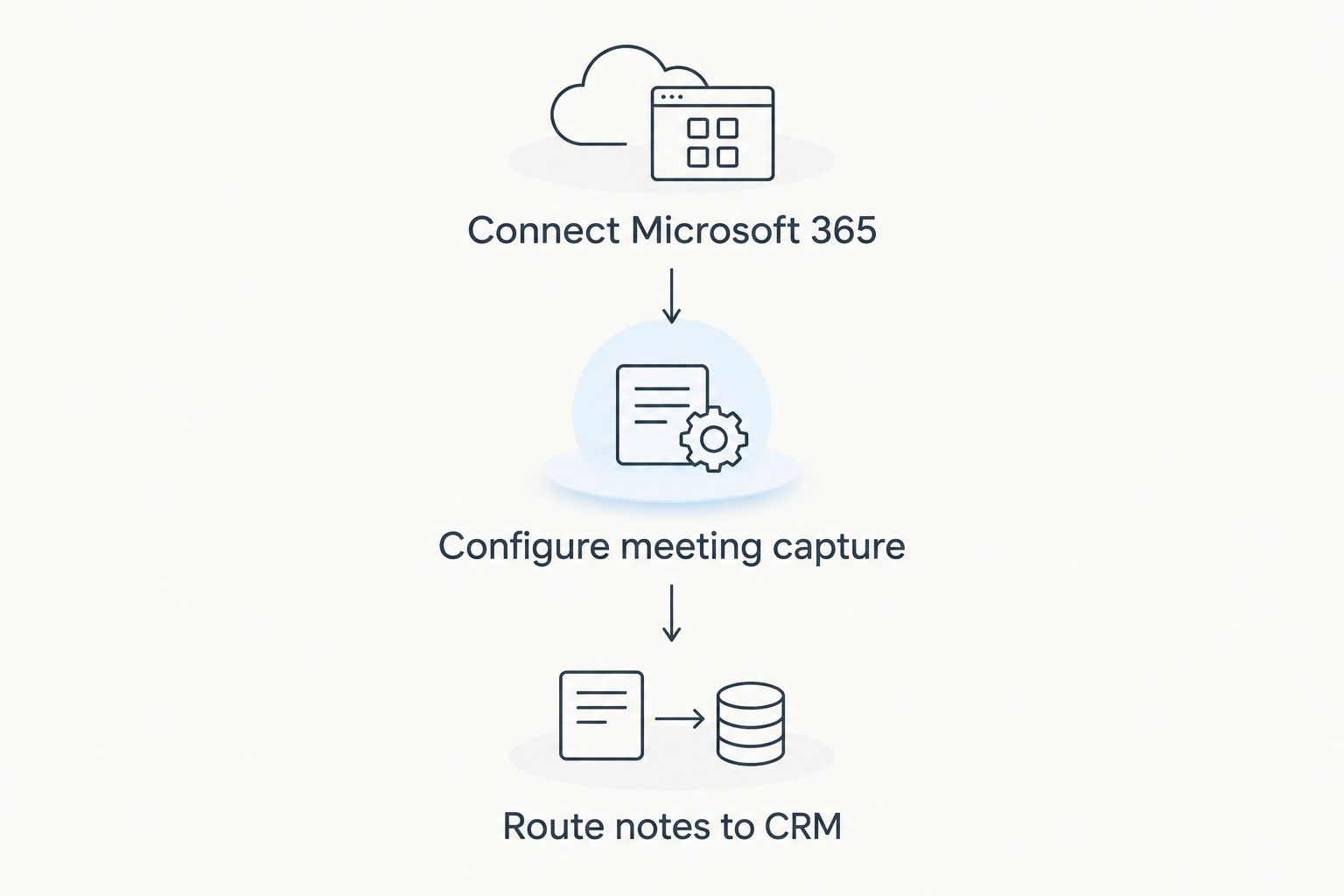
The order matters more than it looks. Skip the calendar permissions and auto-join never fires; skip CRM mapping and the notetaker produces perfectly good transcripts that sit in Alcova with no home in the client's file.
Running Zoom and Teams side by side
Most advice firms in 2026 aren't fully on one video platform — a client dials in on Zoom, an internal review runs on Teams. Alcova's calendar-based auto-join works the same way regardless of which platform the meeting link points to, so you don't need a separate setup for each. If your firm still runs a chunk of meetings on Zoom, the Zoom-to-CRM workflow guide covers the same connection steps for that platform.
Get your firm's Teams meetings connected
See how Alcova turns Teams calls into CRM-ready compliance records.
Troubleshooting
The notetaker bot never joins the Teams meeting. This is almost always a Teams meeting policy issue, not an Alcova one — your Microsoft 365 admin needs to allow third-party apps to join meetings under Teams admin center > Meetings > Meeting policies.
Notes generate but never appear in the CRM. The CRM Sync token has usually expired or been revoked on the CRM side — reconnect it under Settings > CRM Sync and re-run the push manually for the missed meeting.
The same meeting shows up twice. Check whether more than one calendar is being monitored for the same user — duplicate calendar syncs create duplicate captures.
Transcripts are missing speaker names. Dial-in participants who joined by phone number rather than the Teams app don't get identified automatically; Teams itself doesn't pass a name for phone lines.
"Permission denied" during setup. The Microsoft 365 account needs a license with cloud recording enabled — a basic license without recording rights will authorise the connection but block the actual capture.
“If the bot can't join, the block is almost always in Teams' meeting policy, not in the Alcova connection.”
Customise your workflow
Once Teams is connected, the same integration settings decide how much of your compliance record-keeping runs on autopilot. Firms managing audits at scale should pair this setup with the checklist in compliance recordkeeping software for advisers to confirm every meeting type maps to the record format a compliance review expects.
Adjust the auto-join calendar filter as your team grows — a firm that starts by monitoring one adviser's calendar in 2026 usually ends up rolling the same connection out firm-wide within a quarter once the time savings show up in admin hours.
FAQ
What do you need to connect Alcova to Microsoft Teams?
You need a Microsoft 365 work account with Teams and calendar access, plus an Alcova account with integration permissions. Firm-wide rollout needs Alcova admin rights and, in some cases, sign-off from your Microsoft 365 admin on meeting policies.
Does Alcova join Teams meetings automatically?
Yes, once auto-join is switched on in the Teams integration settings, Alcova joins any meeting scheduled through the connected calendar. Ad-hoc calls without a calendar invite need a manual invite instead.
Will Alcova notes sync to my CRM automatically?
Yes, if CRM Sync is configured and auto-push is enabled, transcripts and summaries push to the connected CRM within minutes of the meeting ending. Without that setup, notes stay inside Alcova until pushed manually.
Can Alcova connect to Teams if my firm also uses Zoom?
Yes, Alcova's calendar-based auto-join works across both platforms without a separate setup. Firms running a mix of Zoom and Teams meetings can connect both under the same calendar.
Why isn't the Alcova bot joining my Teams meeting?
The most common cause in 2026 is a Microsoft Teams meeting policy blocking third-party apps from joining, which your Microsoft 365 admin needs to adjust. The second most common cause is a meeting booked without a calendar invite.
Does connecting Teams require Microsoft 365 admin access?
An individual adviser can usually connect their own calendar without admin rights. Rolling the connection out to a whole team, or fixing meeting policy blocks, typically needs a Microsoft 365 admin.
Can compliance teams see the meeting records Alcova creates?
Yes, once meetings sync to the CRM under the mapped record type, compliance teams can review them through the CRM the same way they review any other client file note or Record of Advice.
How long does it take to connect Alcova to Microsoft Teams?
The connection itself takes under 10 minutes once you have the right Microsoft 365 permissions. Confirming CRM mapping and running a test meeting adds another 10-15 minutes before the workflow is fully verified.
One last thing
The setup step firms skip most often isn't the Teams connection — it's the calendar filter. Leave Auto-join meetings set to "all calendars" and every internal standup, 1:1 and vendor call in 2026 generates a transcript nobody asked for, which clutters the CRM faster than it saves anyone time. Filter to client-facing meetings first, then widen it once the workflow proves itself.