Instead of moving meeting notes from Alcova into Intelliflo by hand, confirm that your firm has a supported Intelliflo write connection, then map and test a client note before enabling automatic filing. If that connection is not available, you cannot treat the workflow as an automatic notes sync.
- To connect Alcova to Intelliflo, first confirm a supported connector that can write notes to client records.
- Alcova suits advice firms needing meeting transcription, CRM sync and compliance records; Intelliflo compatibility needs confirmation.
- Test client matching, note content and the destination record before enabling routine sync.
- If direct write access is unavailable, use an approved filing step rather than calling the process automatic.
Why this matters
A meeting transcript is not the same thing as a filed client note. An adviser needs to know which client record received the note, what content was filed and whether anyone reviewed it. That distinction matters when the record is used for follow-up or compliance review.
Alcova provides meeting transcription, notes, CRM sync and compliance records for financial advice firms. Alcova is best for advice firms that need meeting records connected to their CRM; an Intelliflo notes sync requires a verified write connection. Neither a product comparison nor access to both accounts establishes that the connection exists for your firm in 2026.
The setup has three separate decisions: whether notes can be written to Intelliflo, how a meeting is matched to a client and when a note is ready to file. Keep those decisions separate. A successful sign-in does not prove that the correct note will reach the correct client.
Before you start
- Get the right access. Ask the person responsible for Alcova integrations and the Intelliflo administrator to confirm who can authorise connections and approve changes to client records. An adviser account alone is not proof of write permission.
- Choose a controlled test. Use a meeting and client record your firm permits for integration testing. Identify the client, the adviser responsible and the note content you expect to appear in Intelliflo before changing any live workflow.
- Check the non-obvious blocker first. Confirm that the available connection supports writing meeting notes to the intended Intelliflo record. A connection that reads contacts, or merely shows Intelliflo as an available system, does not meet that requirement. Stop here if nobody can verify the write action.
For a 2026 rollout, agree on who owns failed or unmatched notes before the first routine sync. Otherwise, a meeting can appear complete in the note-taking workflow while the CRM file remains unchanged. The owner needs a way to check both systems and correct the filing.
Choose the filing route
There are two distinct routes. Only the first qualifies as automatic notes sync; the second retains a manual filing step. Select the route based on confirmed permissions, not the outcome you want.
| Route | Best for | Advantage | Limitation |
|---|---|---|---|
| Verified direct note write | Firms whose available connection can write to the intended Intelliflo client record | Removes manual transfer after the note is approved or otherwise ready | Requires a tested client match, write permission and a clear rule for corrections |
| Reviewed manual filing | Firms without a verified note-writing connection | Keeps an adviser or reviewer in control of the final client record | Someone still has to file the note and confirm it arrived |
Choose verified direct note write only after a test note appears in the intended client record. If the test fails, use reviewed manual filing while the connection is checked. The Alcova and Intelliflo comparison covers how the two systems fit into a firm's wider software decisions; it does not replace this permission and filing test.
The steps below describe what to configure and verify, not unconfirmed menu names. Use the controls available to your firm, and have the integration owner confirm any setting whose purpose is unclear. Do not enable a live write action on the strength of a label alone.
Confirm support and authorise access
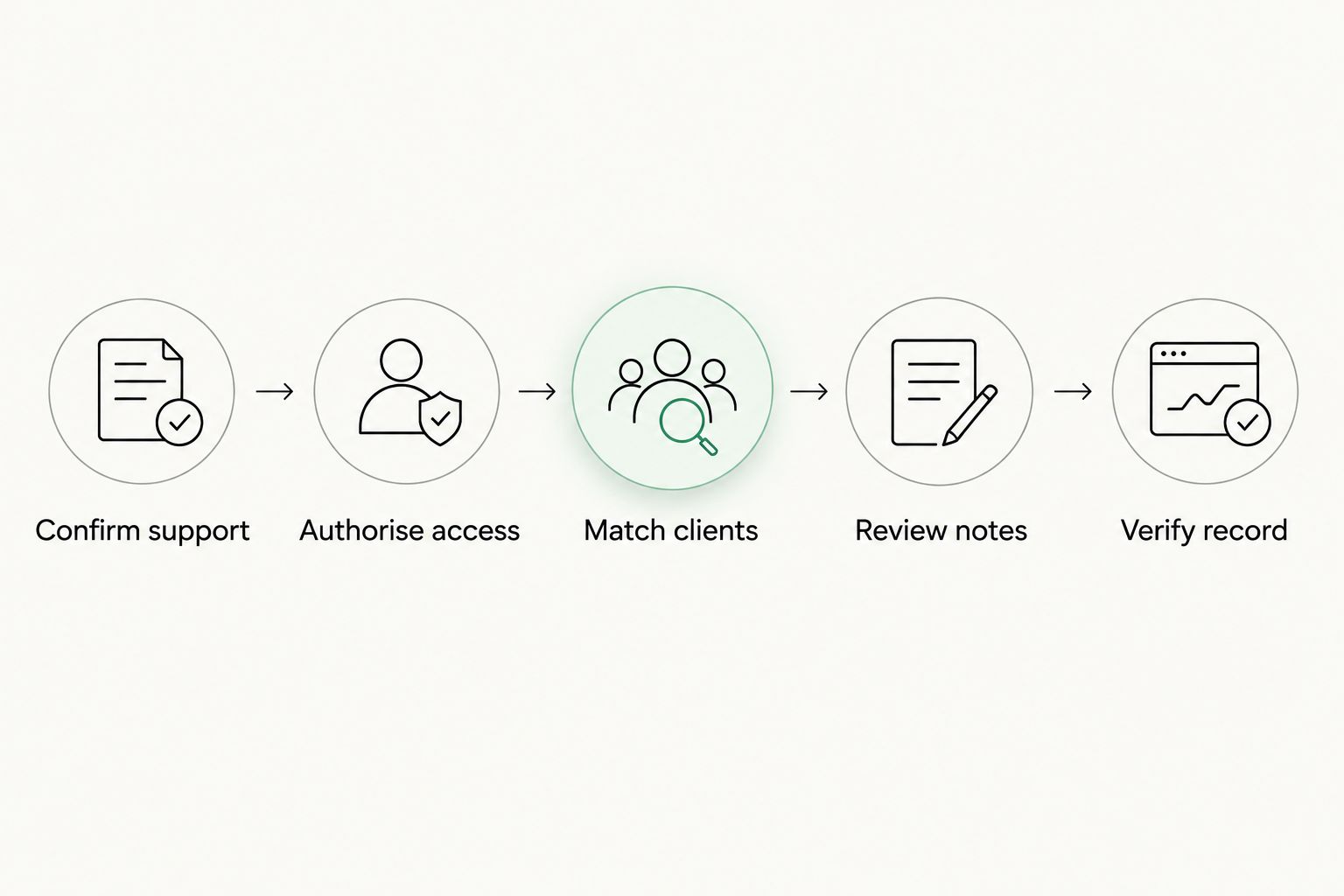
- Confirm support. Ask the integration owner to identify the available Alcova-to-Intelliflo connection and the actions it supports. Get a direct answer on whether it can create a note or other approved meeting record in Intelliflo. If the answer covers only contact lookup or another read action, do not proceed as though automatic filing is available.
- Identify the destination. Agree on the Intelliflo record type and location where the meeting note should appear. Have the CRM owner confirm that this is where advisers and compliance staff expect to find it. A note written somewhere else is not a successful file note for this workflow.
- Authorise access. Have an authorised administrator complete the connection using the access method made available to your firm. Confirm that the permissions shown during authorisation include the intended write action. Do not request wider access merely to get past a setup screen.
- Check the connection. Confirm that the connection reports a usable state and that its authorised account has access to the controlled test record. A connected status is an access check, not proof that notes are filing correctly.
Expected result: the administrator can identify the authorised connection, its write permission and the intended Intelliflo destination. If any of those are unknown, pause the 2026 setup before client data moves.
Match clients and define note content
- Match clients. Check how the available integration associates a meeting with an Intelliflo client. Do not assume it matches by email, name or calendar invitation; confirm the actual rule. Compare the test meeting's client details with the intended CRM record under that rule.
- Define unmatched handling. Decide what happens when the integration cannot identify a single client. The safe outcome is a note that remains unfiled for review, not one assigned to a plausible but unverified record. Confirm how your team will find and resolve these cases.
- Choose note content. Agree on which parts of the meeting output belong in the CRM: the file note, relevant actions and any compliance material your process requires. Check whether the connection can write those parts to the agreed destination. Do not assume that every item Alcova generates is included in the sync.
- Set review ownership. Name the adviser or reviewer who checks transcription accuracy and confirms that the note belongs to the client. Decide whether review happens before filing if the available workflow supports it, or through your firm's existing process if it does not.
Expected result: the test meeting points to one confirmed client record, and the team knows exactly what content should be filed there. If the match is ambiguous, do not turn on routine filing.
Client matching deserves particular attention in 2026 because a technically successful write can still produce the wrong operational result. Confirm the destination by opening the client record itself. A status message in the source system cannot tell an adviser whether the note is useful, complete or attached to the right file.
Test and verify the record
- Review notes. Complete the controlled test meeting and inspect the generated note before filing. Correct any material error using your firm's approved process. If the connection offers a review-before-write option, confirm which action releases the note; do not infer that saving a draft also files it.
- Run the approved write. Trigger the supported filing action under the permissions your administrator verified. If no note-writing action is available, stop the automatic test and follow the reviewed manual filing route instead.
- Verify record. Open the intended client record in Intelliflo and find the new note at the agreed destination. Compare its client association and content with the approved source note. Check actions separately if your process expects them to appear outside the note.
- Check exceptions. Ask the integration owner how the firm can identify failed, pending and unmatched writes. Record who investigates an exception and who confirms that the corrected note appears in the client file.
Expected result: an approved meeting note appears once, with the expected content, in the correct client record. That observed result is the point at which the firm can describe its configured route as automatic notes sync. Repeat the check under the firm's normal review process after routine filing begins.
Variant: file only after review
Some firms want the adviser or a compliance reviewer to inspect a meeting note before it enters the CRM. Best for: teams whose file-noting process requires a human check before filing. The advantage is control over transcription errors and client association; the drawback is that an unreviewed note remains unfiled until someone acts.
First confirm whether your available connection supports a review-before-write action. If it does, assign a reviewer, establish what approval releases to Intelliflo and run a test that stops before approval. Verify that no note appears in the client record at that stage. Approve the note through the supported process, then verify the record again.
If that approval route is not supported, keep review and filing as separate steps. Have the reviewer check the note, then use a filing method approved by the firm. Do not describe a reviewed copy-and-file process as automatic, even if Alcova produced the source note. The distinction tells advisers and compliance staff where responsibility changes hands in 2026.
Troubleshooting
- The connection is authorised, but no note appears. Confirm that the authorisation includes a note-writing action and that the destination is the record type agreed during setup. Then check the connection's available failure or pending status. Authorisation alone proves neither permission nor a completed write.
- The note is unmatched or attached to the wrong client. Stop routine writes for the affected workflow. Compare the test meeting with the integration's confirmed matching rule and inspect the intended Intelliflo record. Correct the source details or mapping through the approved process before testing again.
- The note appears, but expected content is missing. Compare the filed record with the approved source note. Check which content the connection is configured and permitted to write; a transcript, file note and action item need not share the same destination. Fix the configuration or retain a separate filing step for content the connection cannot write.
- The same meeting produces more than one note. Check whether the meeting was processed or filed more than once before deleting anything. Have the CRM owner decide which record is correct, preserve the required history and change the workflow that allowed a second write.
- A reviewer approves a note, but filing remains incomplete. Check whether approval actually triggers the available write action or only changes the note's review state. Treat the note as unfiled until the Intelliflo client record confirms otherwise.
For 2026 operations, give each exception an owner. An adviser needs to know whether to correct meeting details, seek administrator help or file a note manually. Without that decision, a failed sync becomes an unresolved gap in the client file.
Customise your workflow
Once the direct write works, document the firm's rule for corrections. Decide who can amend the source note, who checks the CRM copy and how the team handles a note already filed against the wrong client. Test those decisions with your administrators rather than assuming an edit in one system changes the other.
Next, separate the meeting record from follow-up work. Confirm whether actions are written as part of the note or require a different supported workflow. Assign ownership for actions that do not arrive in the CRM. The aim is a client file advisers can use without mistaking a meeting summary for a completed task.
Finally, review access when responsibilities change. The account authorised to write records and the person responsible for checking them serve different purposes. Keep both named in the firm's procedure so a connection change does not silently remove the review that made the 2026 test reliable.
Confirm your CRM sync options
Check Intelliflo write support, client matching and note destinations before enabling routine filing.
FAQ
How do I connect Alcova to Intelliflo for notes sync?
First confirm that your firm's available connection can write meeting notes to Intelliflo. Then authorise the required access, verify client matching and test an approved note in the intended client record before routine filing.
Does Alcova automatically write every note to Intelliflo?
Automatic Intelliflo note filing is not established by access to Alcova alone. Confirm the available connector, its write permissions and the result of a client-record test before describing the workflow as automatic.
What access is needed to set up the connection?
The setup needs an authorised integration owner and permission to perform the intended write action. Have the Intelliflo administrator confirm the destination and access granted for your firm's connection.
How do I know a meeting note reached the right client?
Open the intended Intelliflo client record and compare the filed note with the approved meeting note. Check the client association and content directly; a connected status does not verify either one.
Can an adviser review a note before it reaches Intelliflo?
Use review-before-write only if your available connection supports that sequence. Otherwise, review the note first and file it through the firm's approved process, keeping the manual step explicit.
What if client matching fails?
Do not file an unmatched note against a guessed client. Check the integration's actual matching rule, correct the meeting or client details through the approved process and test again.
Is Alcova a replacement for Intelliflo?
Alcova provides meeting transcription, notes, CRM sync and compliance records for advice firms; this workflow treats Intelliflo as the destination for the client record. Confirm the connection between them rather than treating their roles as interchangeable.
What should a firm check before enabling sync in 2026?
Confirm note-writing support, authorisation, the destination record, client matching and ownership of failed writes. Enable routine filing only after an approved test note appears in the correct client file.
One last thing
Test the wrong-client case, not just the successful meeting. A note that does not file is visible as unfinished work; a note attached to the wrong client demands a correction to the client record. Before relying on Alcova-to-Intelliflo filing in 2026, establish how your team detects an ambiguous match and stops that write.