Manually re-listening to Google Meet recordings and typing them into a CRM eats an hour for every client review — set up Alcova to join, transcribe and file the meeting for you instead, and that hour goes back into the calendar. This guide walks through connecting Alcova to Google Meet in 2026, plus what to do when the bot doesn't show up.
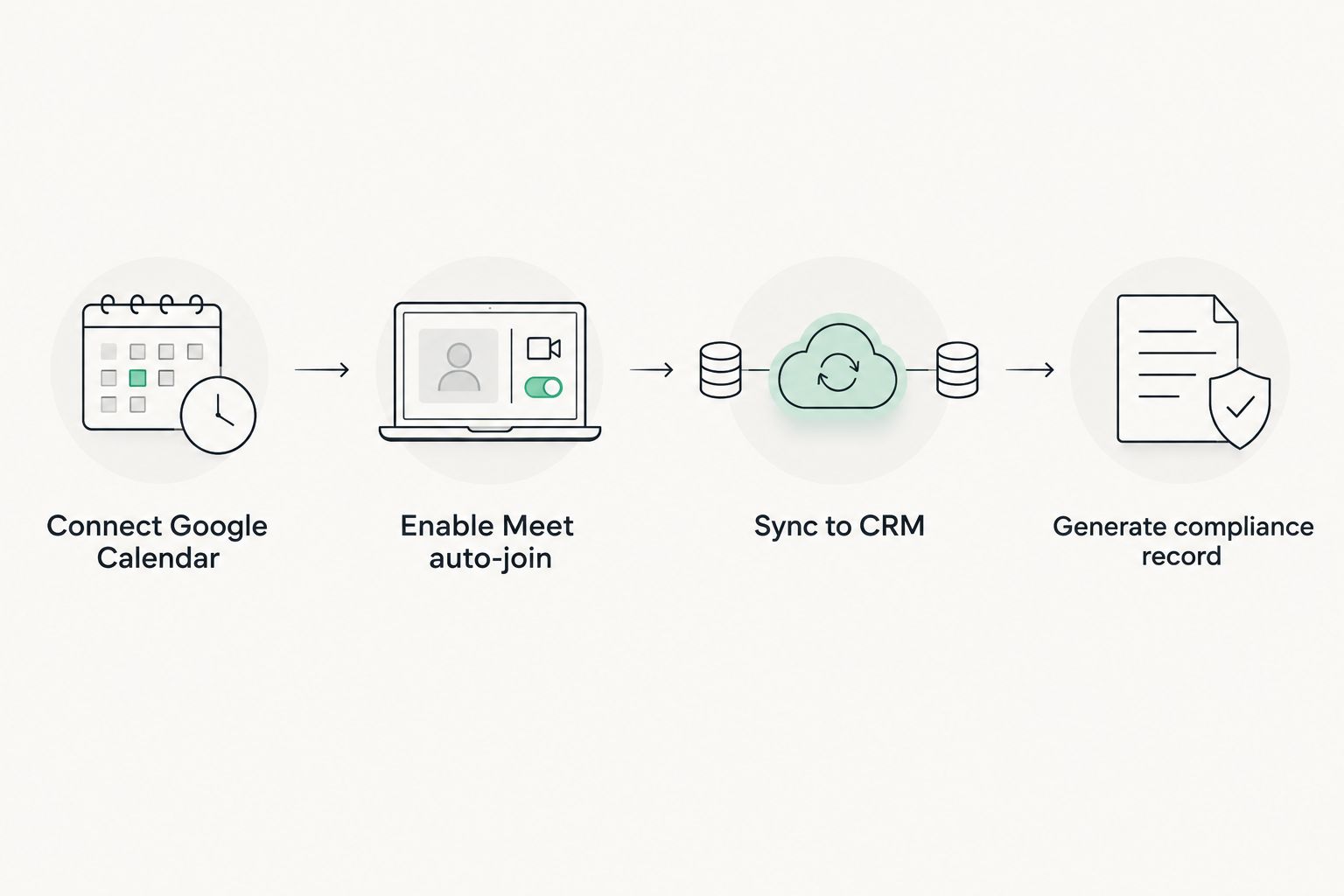
- Connect Alcova to Google Meet through Google Calendar sync, not a per-meeting link, for advice firms running back-to-back client reviews.
- Auto-join only fires on meetings where Alcova is invited or the calendar event includes a Meet link — internal huddles without one are skipped.
- Transcripts sync to the CRM record automatically once the client contact is matched, cutting file-noting time for a full day of meetings from hours to minutes.
- Domain-wide Google Workspace admin consent is the step most firms miss on first setup in 2026, and it stalls the whole connection.
Why this matters
A financial adviser running five client meetings a day loses roughly the same five hours writing file notes, if the notes get written at all. Compliance teams then chase advisers for Records of Advice that should have existed the moment the meeting ended.
Connecting Alcova to Google Meet removes the gap between what was said in the meeting and what lands in the file. The transcript, the notes and the compliance record all get generated from the same source instead of a memory of the call three days later.
Before you start
- A Google Workspace account with calendar access — personal Gmail accounts without Workspace admin controls can still connect, but domain-wide rollout needs a Workspace admin.
- An active Alcova workspace with a user seat provisioned for each adviser whose meetings need transcription.
- The gotcha: if your firm runs Google Workspace with restricted third-party app access, the calendar connection will fail silently at the OAuth screen unless a Workspace admin pre-approves Alcova as a trusted app. Get IT or the admin to whitelist it before any adviser starts connecting individual accounts, or you'll be troubleshooting a dozen failed logins instead of one setting.
Set up your Google Calendar connection
- Log into Alcova and open Settings.
- Under Integrations, select Google Calendar.
- Click Connect Google Account and sign in with the Google Workspace account tied to the adviser's meetings.
- On the Google consent screen, grant calendar read access when prompted. This is the permission that lets Alcova see upcoming meetings and detect Google Meet links.
- Confirm the connection status shows Connected back in Alcova's Integrations panel.
Expected result: upcoming meetings with a Google Meet link now appear in the Alcova dashboard ahead of time, each flagged for auto-join.
Configure Google Meet auto-join
- Still under Integrations, find the Meeting Assistant section.
- Toggle Auto-join Google Meet calls on.
- Choose whether the bot joins all calendar meetings with a Meet link or only meetings where a client contact is on the invite — the second option keeps internal team calls out of the transcript log.
- Set the join name the bot displays in the meeting (most firms use something like "Alcova Notetaker" so clients recognise it on screen).
Expected result: on the next scheduled Google Meet call, the bot appears in the participant list within the first minute and starts recording once admitted.
Sync transcripts to your CRM
- In Integrations, open the CRM Sync section and connect your CRM (Wealthbox, Redtail, Salesforce FSC, XPLAN or whichever your firm runs).
- Match the Google Meet attendee's email to an existing CRM contact — Alcova prompts for confirmation the first time a new email appears.
- Set the sync rule: transcript and summary attach to the contact record automatically after the meeting ends.
Expected result: within minutes of the call finishing, the client's CRM record shows the meeting note without anyone opening a laptop. For a broader look at how sync rules behave across different CRMs, the CRM sync comparison for financial advisers covers the field-mapping differences firm by firm.
Variant: connect Alcova to Zoom as well
Most advice firms in 2026 run a mix of Google Meet and Zoom depending on which platform the client prefers. The same auto-join logic applies to Zoom — connect it under Integrations alongside Google Meet, and Alcova routes both into the same transcript and CRM sync pipeline. If your firm leans more heavily on Zoom for client reviews, the Zoom meetings to compliant CRM notes workflow walks through the platform-specific settings.
Troubleshooting
- Bot doesn't join the meeting. Check that the calendar event actually contains a Google Meet link generated by Google Calendar, not a pasted link from another tool — Alcova only detects native Meet links.
- Transcript is missing speaker labels. This happens when attendees join from a phone dial-in instead of the Meet app; speaker diarisation needs the video/audio client, not the PSTN bridge.
- CRM sync creates a duplicate contact instead of matching the existing one. The attendee's email in the calendar invite doesn't match the email on file in the CRM record — update the CRM contact's email or add it as a secondary email before the next meeting.
- Connection shows "Connected" but no meetings appear. The calendar OAuth token can expire after a Google Workspace password reset; disconnect and reconnect the calendar under Settings.
- Admin can't approve the app. Some Workspace configurations restrict third-party OAuth apps by default — a Google Workspace super admin needs to add Alcova to the trusted apps list in the Admin Console.
Customize your workflow
Once the basic connection is running, most firms tighten it further:
- Restrict auto-join to meetings longer than 15 minutes, so quick check-in calls don't clutter the transcript log.
- Route compliance-flagged meetings (advice reviews, product recommendations) straight into a separate record type for audit purposes — the compliance recordkeeping guide for advisers covers how firms structure that separation.
- Pair the meeting connection with scheduling rules so client bookings automatically generate a Meet link Alcova can detect — see the meeting scheduling tools comparison for financial advisers for options that plug into Google Calendar cleanly.
Set up your Alcova connection
Connect Google Meet and start syncing transcripts to your CRM today.
FAQ
How do I connect Alcova to Google Meet?
Connect your Google Calendar under Alcova's Settings > Integrations, grant calendar access, then turn on Auto-join Google Meet calls in the Meeting Assistant section. The bot then joins any calendar meeting with a Google Meet link.
Does Alcova work with Zoom as well as Google Meet?
Yes, Zoom connects under the same Integrations panel and routes through the same transcript and CRM sync pipeline as Google Meet in 2026.
Why isn't the Alcova bot joining my Google Meet calls?
The most common cause is a meeting link that wasn't generated natively by Google Calendar, or a Google Workspace admin restriction blocking the third-party app. Check the calendar event's link source first.
Can I limit which meetings Alcova joins?
Yes, under Meeting Assistant settings choose to auto-join only meetings where a client contact is on the invite, which keeps internal team calls out of the transcript log.
Does the transcript sync automatically to my CRM?
Once CRM Sync is connected and the attendee's email matches an existing contact, the transcript and meeting summary attach to that CRM record automatically after the call ends.
What happens if a client joins by phone instead of the Meet app?
Speaker labels in the transcript won't separate correctly for phone dial-in attendees, since diarisation needs the Meet video/audio client rather than the PSTN bridge.
Does a Google Workspace admin need to approve Alcova?
If your Workspace restricts third-party OAuth apps, yes — a super admin needs to whitelist Alcova in the Admin Console before individual advisers can connect their calendars.
Can Alcova generate compliance records from Google Meet transcripts?
Yes, meetings can be routed into a separate compliance record type once transcribed, which advice firms use to keep Records of Advice and audit trails organised.
One last thing
The setting most firms skip is the attendee-matching rule under CRM Sync — get it wrong once during setup in 2026 and every meeting after it creates a duplicate contact instead of updating the real one, which means someone ends up cleaning up the CRM by hand anyway. Set it up right the first time and the whole point of connecting Alcova to Google Meet — no manual file noting — actually holds.