
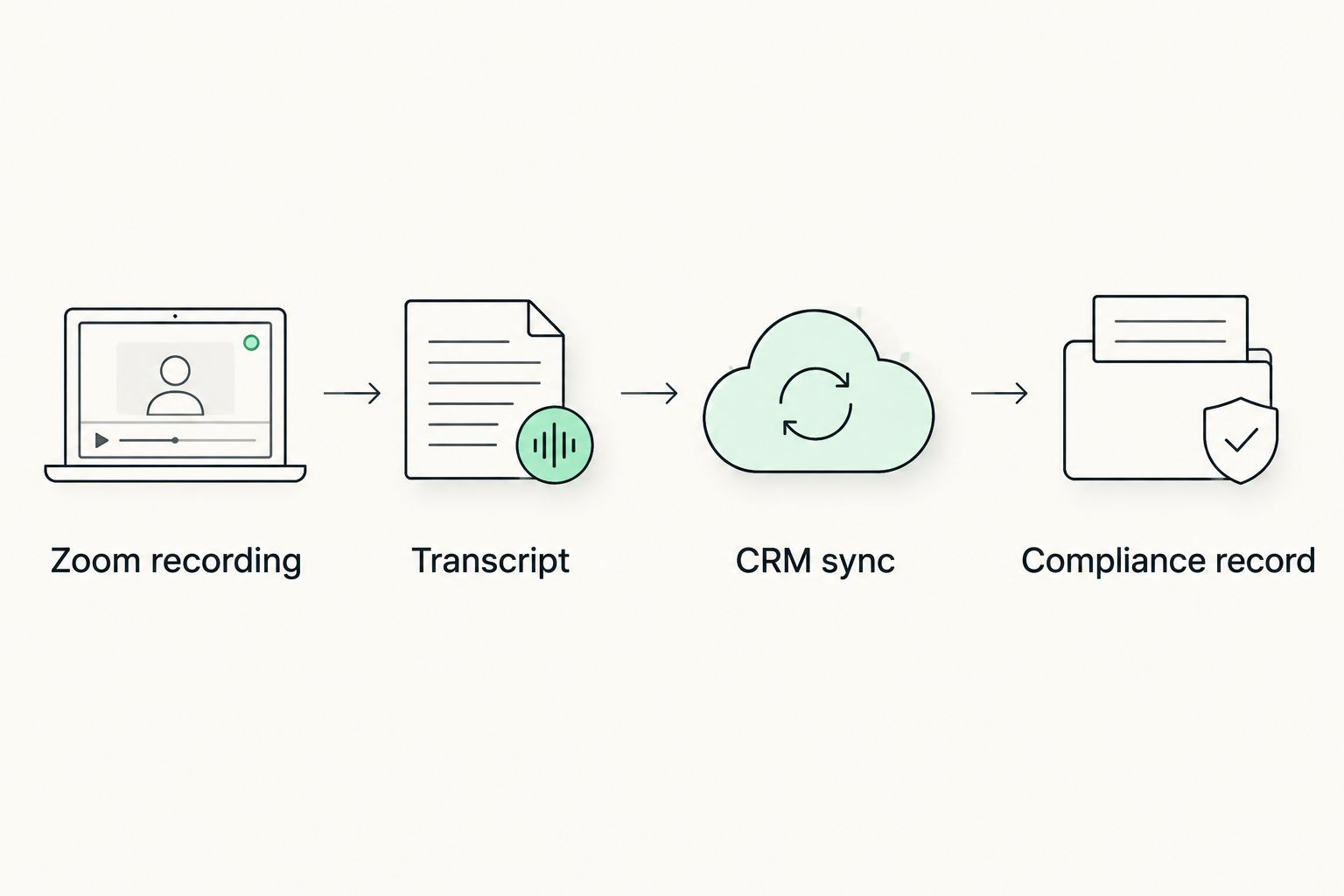
Advisers who copy Zoom transcripts into Wealthbox, Redtail, Salesforce FSC or Xplan by hand are doing two jobs on every client call: running the meeting and running data entry after it. Set up a Zoom-to-CRM workflow with Alcova and the transcript, the summary, the tasks and the compliance record land in the client file before the adviser has closed the laptop.
- Zoom meeting notes to CRM syncs automatically once Alcova sits between Zoom Cloud Recording and the CRM's API.
- Wealthbox, Redtail, Salesforce FSC, Xplan, Practifi and Dynamics 365 all accept field-level sync, not a pasted note.
- The compliance record generates from the same transcript that builds the CRM activity, so there's no second pass.
- Setup takes under 30 minutes once Zoom Cloud Recording and CRM API access are both switched on.
- Local Zoom recordings won't trigger the sync in 2026 or any other year — the account must record to the cloud.
Why this matters
File noting is the part of adviser work that never shows up on a fee proposal and never gets skipped either. Every client meeting needs a record that satisfies compliance, and every action item needs to land in the CRM before it's forgotten.
Done manually, that's a transcript nobody re-reads, a summary typed from memory an hour later, and a compliance record written to satisfy the file rather than reflect the call. Automating zoom meeting notes to crm sync removes the gap between what was said on the call and what's recorded about it — the note is built from the transcript, not from recollection.
Before you start
- Zoom Cloud Recording enabled on the account running client meetings — local recording won't trigger anything downstream.
- CRM admin access with integration or API permissions on Wealthbox, Redtail, Salesforce FSC, Xplan, Practifi, Dynamics 365 or HubSpot.
- The gotcha: new Zoom accounts default to local recording. If a firm rolls this out across a team without checking that setting first, half the advisers will record client meetings that never reach the CRM — and nobody notices until compliance asks for a file note that doesn't exist.
Connect Zoom as the meeting source
- In Zoom, go to Settings > Recording and enable Cloud Recording.
- Turn on Record Meeting Automatically if every client call should be captured without the adviser remembering to hit record.
- In Alcova, open Integrations, click Connect Zoom, and authorize access when prompted.
Expected result: new Zoom recordings appear in Alcova's meeting list within minutes of the call ending, tagged with the meeting title and attendee list pulled from Zoom.
Configure the CRM sync
- In Alcova, go to Integrations > CRM and select the firm's CRM from the list — Wealthbox, Redtail, Salesforce FSC, Xplan, Practifi, Dynamics 365 or HubSpot.
- Map fields under Field Mapping: send Meeting Summary to the CRM's activity note, Action Items to tasks, and Attendees to the matching contact record.
- Set the Sync Trigger to On Call End for immediate push, or After Review if an adviser or paraplanner should check the note first.
Expected result: the client's CRM record shows a new activity entry with the meeting summary and open tasks within the sync window chosen in step 3. Firms comparing CRM options for this step should look at what each CRM sync tool actually maps at the field level, not just whether it connects.
Set the compliance record trigger
- In Alcova, go to Compliance > Templates and select Record of Advice or File Note, depending on whether the meeting involved advice.
- Set the template to generate automatically for meetings tagged Advice, and leave general check-ins on a lighter file note template.
- Set Approval Routing so the compliance record locks into the CRM only after a designated reviewer signs off.
Expected result: every advice meeting produces a compliance-ready record without a second drafting step. Firms building this out at scale should treat the compliance recordkeeping layer as the part that gets audited, not the CRM entry.
Second variant: route internal meetings differently from client meetings
Not every Zoom call needs a compliance record. Internal team meetings and prospect calls that never became clients shouldn't trigger a Record of Advice.
- Tag internal or non-advice meetings differently in Alcova's Meeting Type field before the sync runs.
- Route those meetings to a simple CRM activity note only — skip the compliance template entirely.
- Reserve the full compliance trigger for meetings tagged Client and Advice together.
This keeps the compliance record for what actually needs one and stops the CRM filling up with formal file notes for a Monday stand-up.
Troubleshooting
- Transcript never appears in Alcova. Check the recording was set to Cloud, not Local. Local recordings sit on the host's device and never reach the sync.
- Duplicate entries in the CRM. The sync trigger is likely set to fire on both On Call End and a manual re-push. Set it to one trigger only.
- Fields land empty in the CRM. Custom field names in Xplan or Practifi sometimes don't match Alcova's default mapping — recheck Field Mapping after any CRM template change.
- Compliance record stuck in draft. Approval routing has no assigned reviewer. Assign one under Compliance > Templates > Approval Routing.
- Recording delayed by several minutes. Zoom's cloud processing takes a few minutes after the call ends before the transcript is ready — this is normal and not a sync failure.
See the full sync in your CRM
Connect Zoom and your CRM to check how the mapping looks before rolling it out firm-wide.
Customize your workflow
Once the basic Zoom-to-CRM sync is running, the next thing worth setting up is the note-taking layer itself — which meeting types get full transcripts versus summaries only, and which advisers get automatic task creation versus a review step. Firms still deciding which note taker to run this on should compare the shortlist of AI meeting note takers for financial advisers before locking in the integration, since switching later means remapping every CRM field again.
FAQ
What's the best way to get Zoom meeting notes into a CRM automatically?
Connect Zoom Cloud Recording to an AI notetaker like Alcova that syncs directly to the CRM's API, mapping the summary, tasks and attendees to the right fields. Pasting a transcript manually into the CRM isn't automation, it's just faster typing.
Is Zoom's built-in AI Companion enough for CRM sync?
Zoom AI Companion generates a summary inside Zoom but doesn't push structured data to a CRM or generate a compliance record. It covers the transcript step, not the sync or the compliance layer.
Does this work with Xplan and Salesforce FSC?
Yes — both accept field-level sync for activity notes, tasks and contact updates through Alcova's integration, alongside Wealthbox, Redtail, Practifi, Dynamics 365 and HubSpot.
Can a compliance record be generated automatically from a Zoom call?
Yes, when the meeting is tagged as an advice meeting the Record of Advice or file note template generates from the same transcript used for the CRM sync. It still routes to a reviewer before it locks in.
How long does it take to set up Zoom-to-CRM sync?
Under 30 minutes once Zoom Cloud Recording is enabled and the CRM has API or integration access switched on. Most of the time goes into field mapping, not the connection itself.
What happens if a Zoom recording is stored locally instead of the cloud?
It never reaches the sync. Local recordings sit on the host's device until manually uploaded, so any client meeting recorded locally in 2026 needs a manual fix, not an automatic one.
Is the synced note enough for a Record of Advice under compliance requirements?
The synced note is built from the full transcript, which covers more than most manually typed file notes, but the approval routing step still matters — a reviewer should confirm it before it's treated as the final compliance record.
Does every meeting need to trigger a compliance record?
No. Internal meetings and non-advice calls should route to a simple CRM note only. Reserve the full compliance template for meetings tagged as client advice meetings.
One last thing
The part of this rollout that actually breaks isn't the CRM mapping — it's Zoom's own account defaulting to local recording. Check that setting across every adviser's account before assuming the sync is live for the whole team, not just the one account used to test it.